Filters
Instead of manually writing conditions every time we need to insert new rules in our flow, we can create filters and use them in the visual editor whenever needed.
Filters that can be used with Flower are created as JSON files, with the filter value specified in the type field.
By defining filters in this way, we can reuse them in multiple flows, saving time and effort in the long run.
This approach also promotes consistency and reduces the likelihood of errors or inconsistencies in the logic of our flows.
{
  "type": "filter",
  "name": "app",
  "filters": [
    {
      "label": "Basic",
      "options": [
        {
          "label": "isLogged",
          "value": "^app.isLogged",
          "type": "radio"
        },
        {
          "label": "userRoles",
          "value": "^user.roles",
          "defaultOp": "array:in",
          "options": [
            {
                "label": "Administrator",
                "value": "admin"
            },
            {
                "label": "Customer",
                "value": "customer"
            },
            {
                "label": "Basic User",
                "value": "user"
            }
          ]
        }
      ]
    }
  ]
}
In this example, we have set up two different filters. The first one is a boolean filter, for which we have specified a label that will be displayed in the visual editor, and a value that contains the exact path to the variable whose value will be used to determine the condition. In this case, Flower reads the value of isLoggedIn from the app reducer.
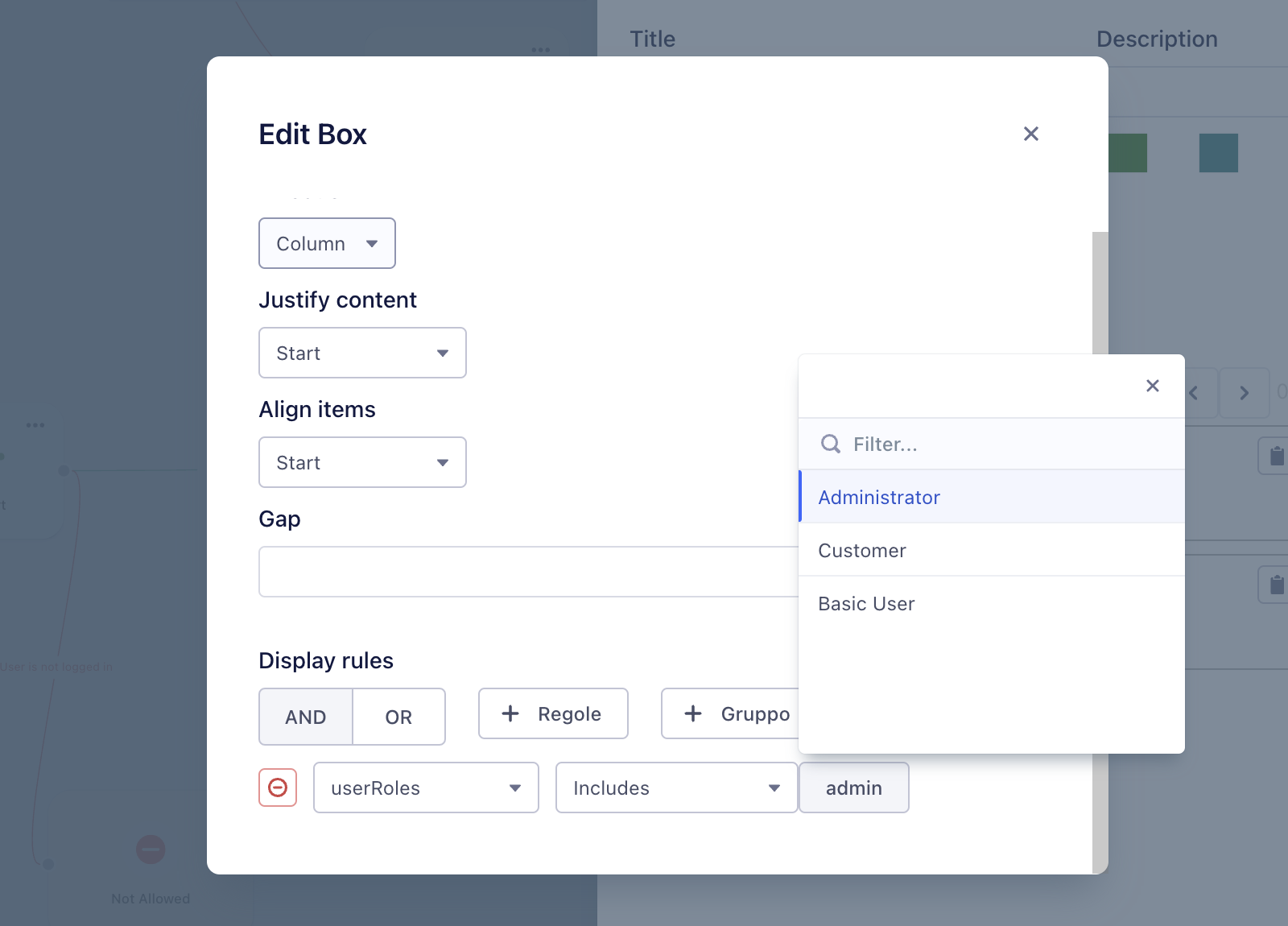
The second filter reads from the roles field in the user reducer. This filter is of type array, which means that we can select multiple values at once without having to write multiple conditions.
Use Cases of Filters
For instance, suppose we have a page in our app that displays all the informations related to the user's account. In this scenario, we might want to implement a rule that allows the user to access the page only if is logged into the app.
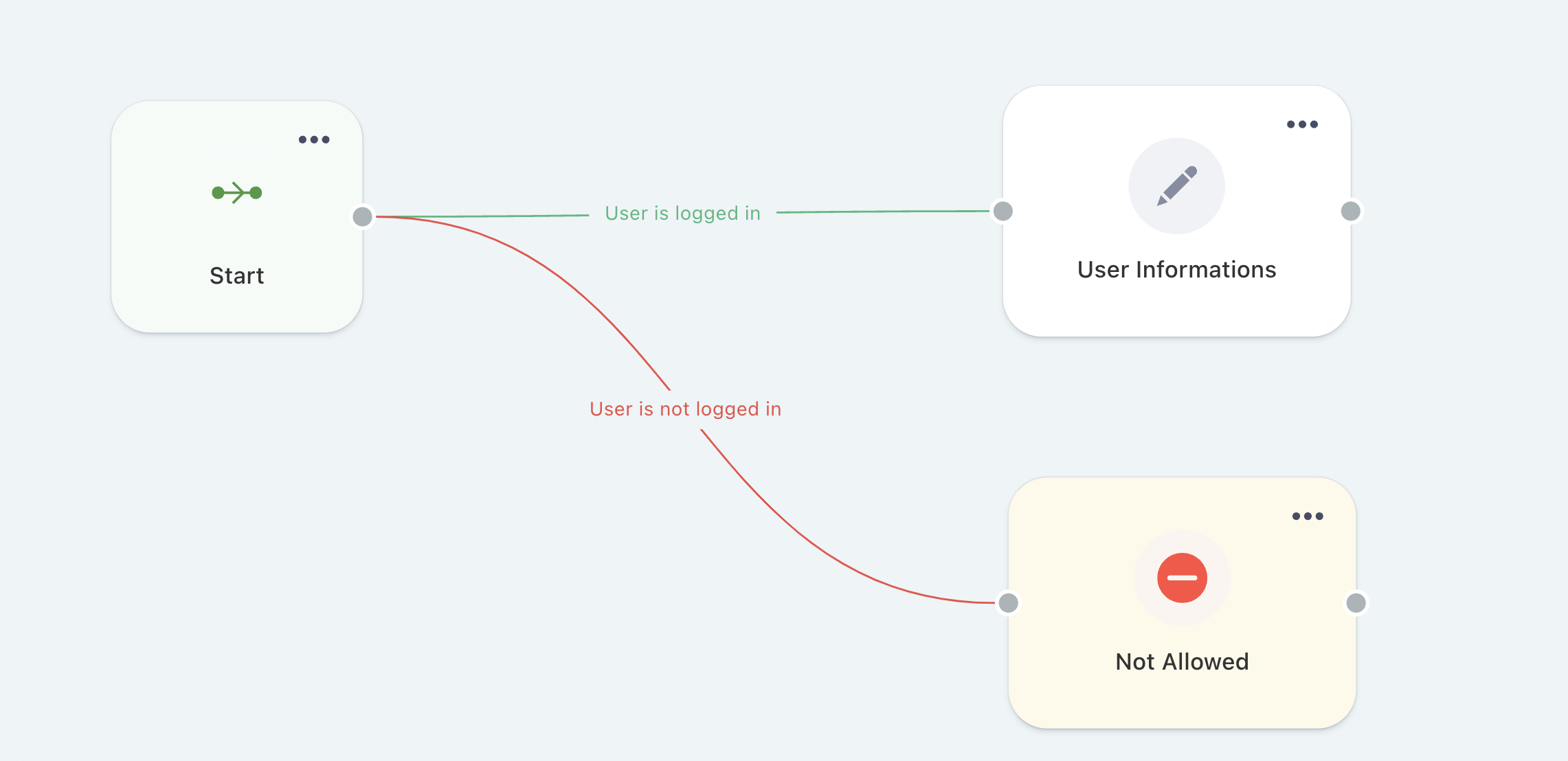
To achieve this, we can create two distinct nodes: one containing the user's informations, and the other, an action node that redirects to the login page. To restrict access to the page, we need to set the rules in the branches.
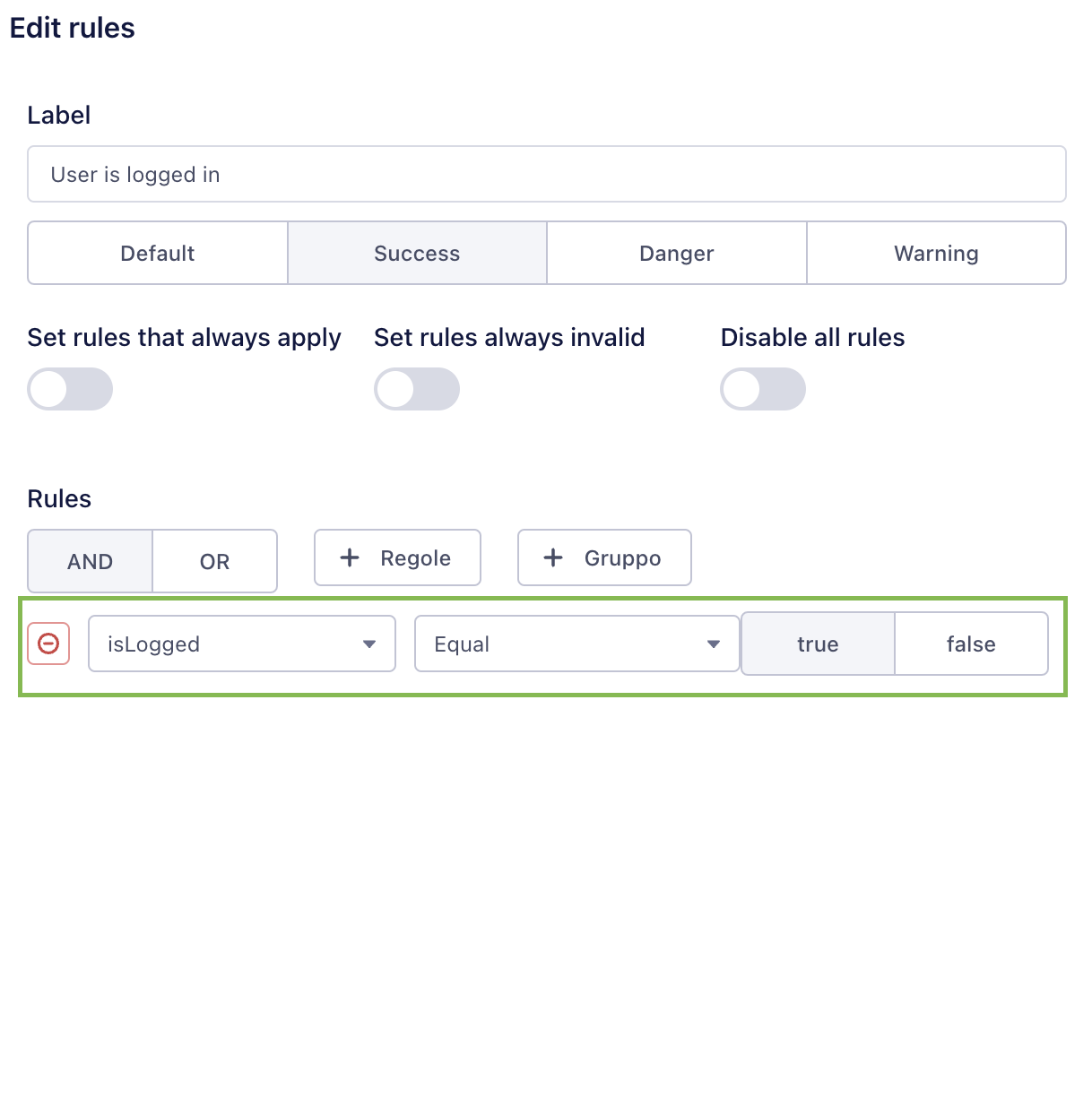
This is the rule that we set to access the node that contains the user's informations.
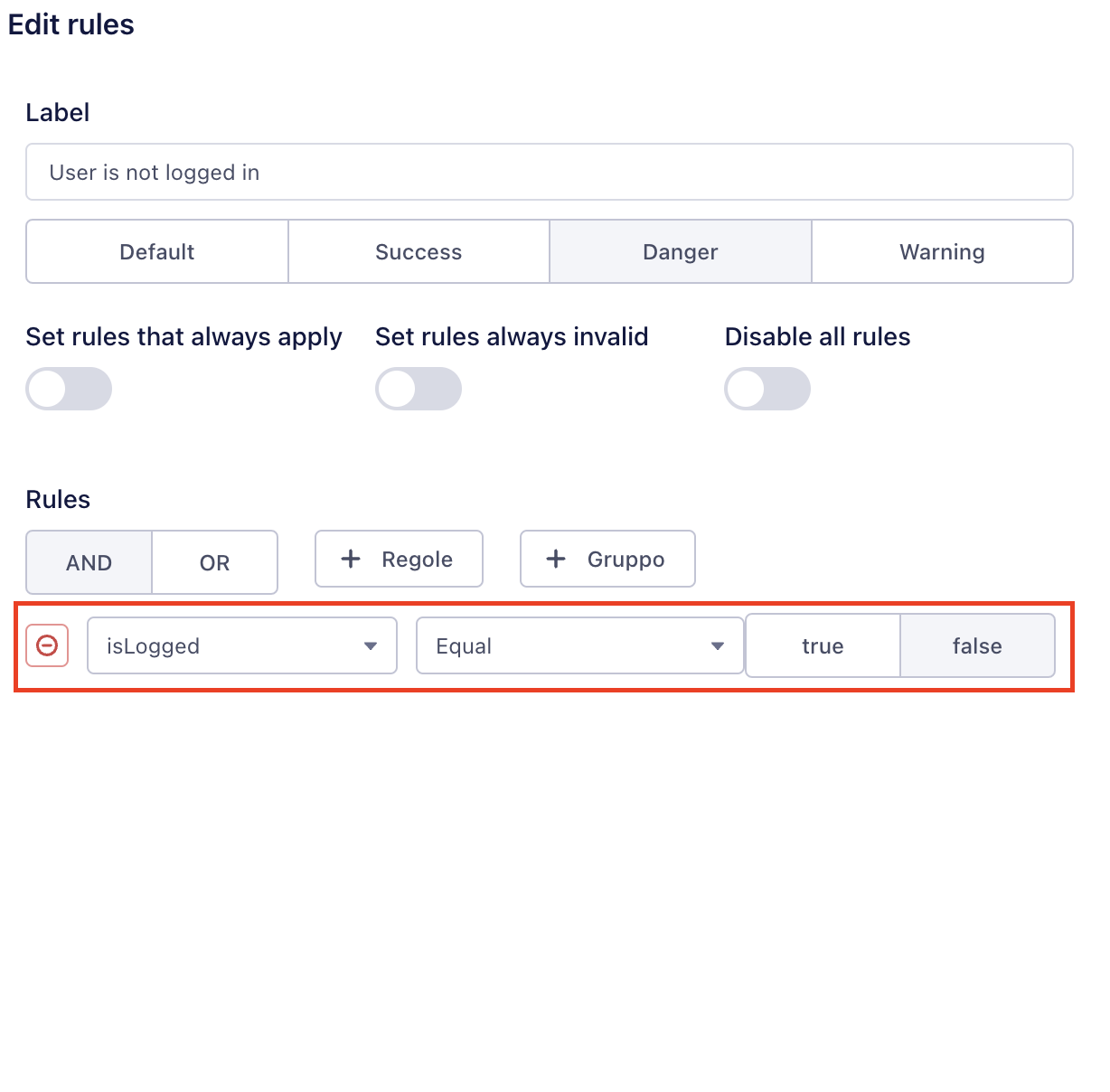
This is the rule that we set to access the redirect node.
In some cases, we may want to restrict access to specific pages or sections of a page based on certain criteria, such as the user's role. Depending on the situation, we can either block access to the entire page or set visibility rules inside the nodes.
For instance, let's consider a page of the app with two sections wrapped inside separate boxes. The first box should be visible to all users, whereas the second box contains information that can only be accessed by the app's administrator.
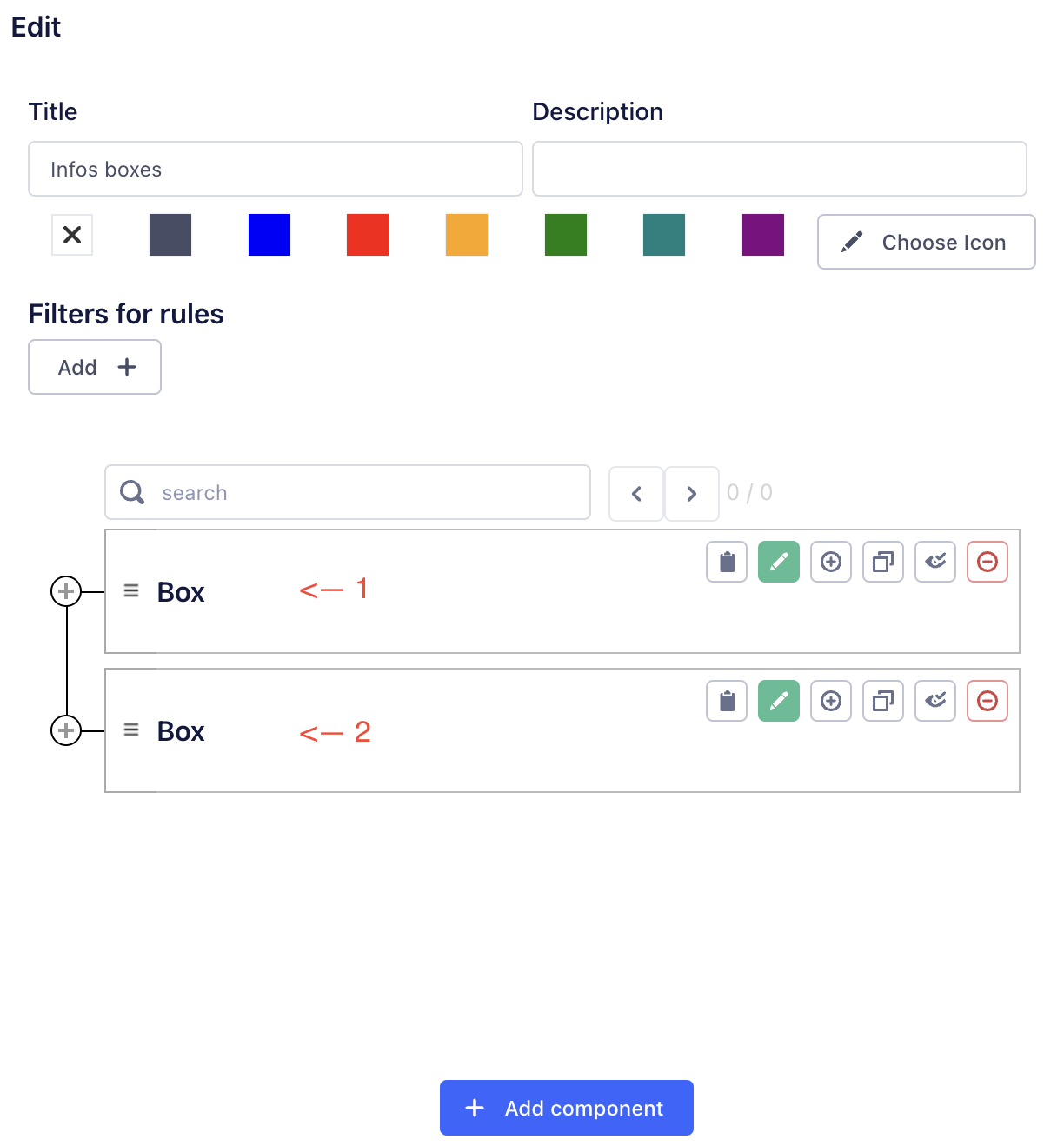
To achieve this, we can easily set a visibility rule for the second box using the user's filter.