Conditional branching
One of the most useful features of Flower is to have different branches in a flower, allowing you to easily handle conditional logic: each branch (a sequence of nodes) can have its own rules that determine whether the application will execute that part of the flower.
An example is a node that can generate an error: if everything goes well the flower will follow a certain branch, if indeed the error is thrown the flower will follow another branch. Or there might be situations where it is useful to have two branches, one for users that are not registered to the application, another one for registered users.
Adding rules to a branch
When you connect a node to another node, by default no rules apply, so that node is always active. If multiple nodes are connected to the same node, without any rules, the highest node in the visual editor has priority.
However, in case of multiple nodes connected to the same node the correct behaviour is to set rules to determine which one is active.
To add rules to a branch, click on the link connecting two nodes. In the Rules section you can create rules using Flower rules system (see here - link to rules page).
Conditional logic between nodes works by reading a value from the store, and checking it against one or more conditions. In a rule row, you choose a value from the select element on the left (the first one).
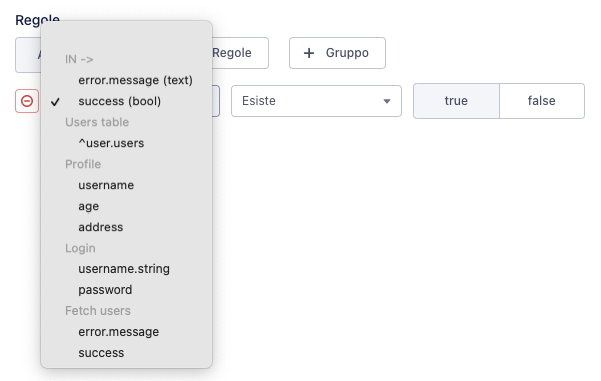
In the list you see all the IDs (the store keys) used in the flower, i.e. the IDs you have assigned to your elements.
Output and input
Notice the IN -> section at the top: this is a special section that displays the keys the previous node made available.
In its flower.json a node can have an output key, that specifies the keys that node uses to save its result (usually a success and a fail). Those same keys are used as inputs for the outcoming links rules.
Example
Let us explain with an example.
The following is a node that outputs its result to error.message if something goes wrong, otherwise to success.
{
  "type": "component",
  "isAction": true,
  "name": "FetchPost",
  "title": "Fetch post",
  "category": "actions",
  "editing": [],
  "output": {
    "error.message": "text",
    "success": "bool"
  }
}
The output is generated in the related saga.
function* fetchPosts({ payload }) {
  const { flowName, reducerName } = payload
  try {
    // Fetching logic...
    yield put({ type: 'success', payload: true })
  } catch(e) {
    yield put({ type: 'error', payload: e.message })
  } finally {
    yield put({ type: 'flower/next', payload: { flowName, reducerName } })
  }
}
success and error actions are handled by the reducer attached to the flower, that saves the payload to success or error.message.
Then in the outcoming links IN -> section, the two keys are available for use in the rules.
Keeping the reducer clean
In the example above the output was directly saved to the flower reducer. You might want to avoid this, keeping it cleaner.
Alternatively, it is possible to keep the output in the node's internal state, and still have it visible in links' rules. To do so, append $current. to your output keys.
{
  "output": {
    "$current.error.message": "text",
    "$current.success": "bool"
  }
}
And dispatch a special action that updates the node data, updateNodeData.
import { updateNodeData } from '@stackhouseos/flower-client'

function* fetchPosts({ payload }) {
  const { flowName } = payload
  try {
    // Fetching logic...
    yield put(updateNodeData(flowName, 'success', true))
  } catch(e) {
    yield put(updateNodeData(flowName, 'error.message', e.message))
  } finally {
    yield put({ type: 'flower/next', payload: { flowName } })
  }
}